 Creating text for engraving
|
<< Click to Display Table of Contents >> Navigation: Engraving text >
|
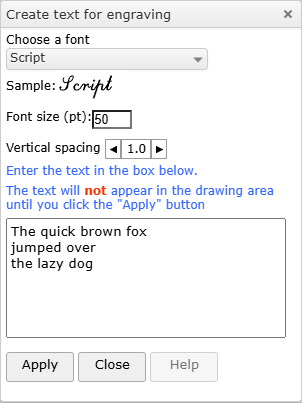
Click the engraving text tool on left tool bar. This will show the pop-up box shown on the left.
Choose a font from the drop down list. The sample shows what the font looks like.
Unlike normal text, it is not possible to show what the font looks like in the drop down list itself.
You set the font size and also the vertical spacing.
N.B. While this box is showing, you can't access anything else in the app but you can move the box by dragging on the title bar or resize it by dragging on the edges.
Enter the text you want in the box and click the "Apply" button to show the text in the drawing area. The result is shown below,
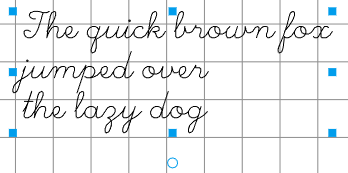
When new text is created, it is automatically selected so at this point can change the font, the font size and the vertical spacing. You can also change the content by editing the text in the box and clicking the "Apply" button to see the change.
Close the pop-up box with the "Close" button or with the small cross on the title bar,
Editing text
You can edit engraving text in to ways:
• Use the select tool to select the text. Move the tool over the text until you are on a line and the cursor changes to
  . Now double click
• Use the engraving text tool. Move the tool over the text - it doesn't need to be selected. When the cursor change to  single click. This method is a bit easier as the tolerance is greater so you don't need to click exactly on a line..